The Interface at a Glance
Navigate the sidebar, workspace selector, and main areas.
This article explains the layout of the Respeak interface so you can find your way around quickly.
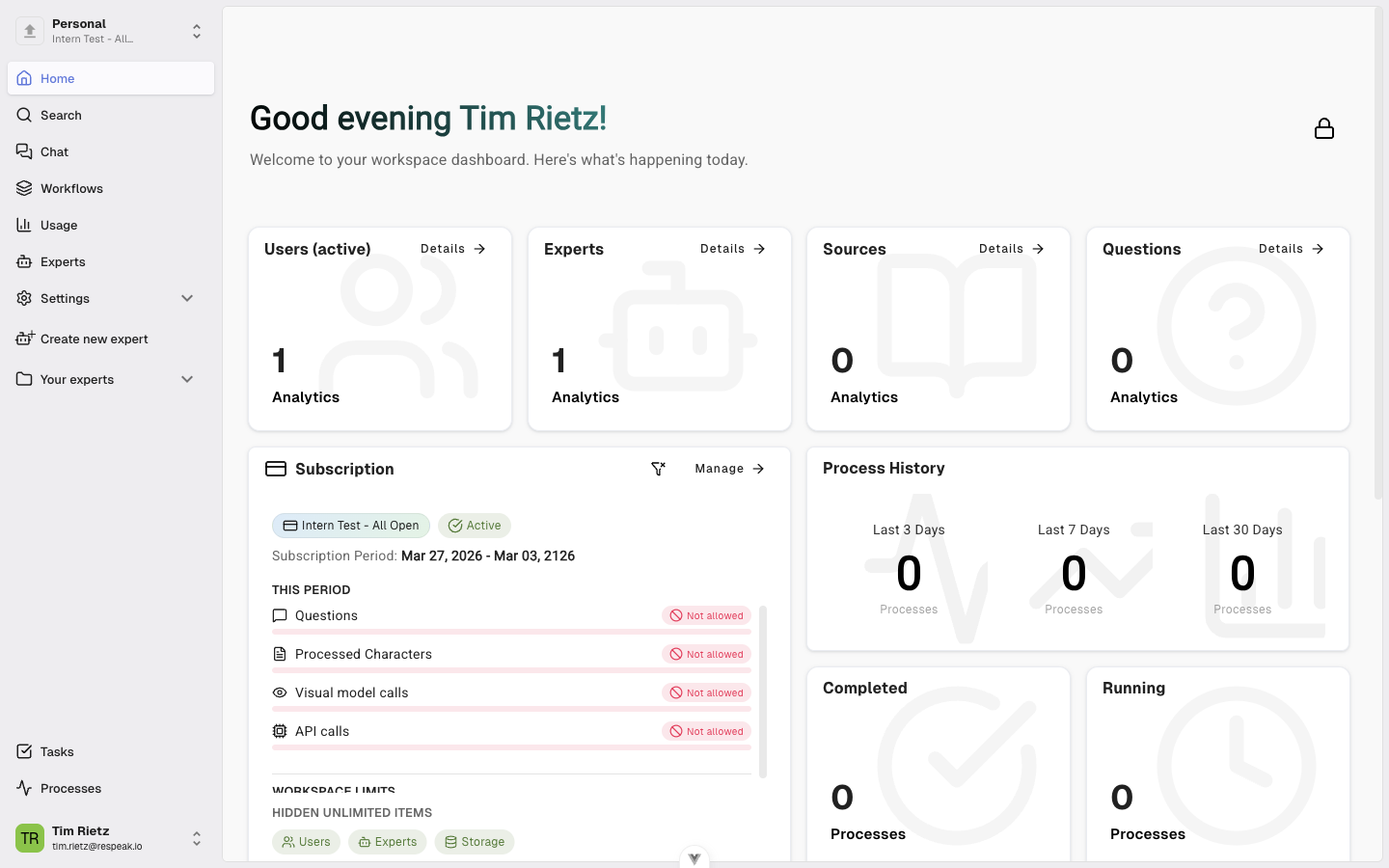
The Sidebar (left)
The sidebar is your main navigation element. It is divided into four areas.
Workspace Selector (top)
At the very top you see your current Workspace with its name and your current plan. Click on it to switch between workspaces, create a new workspace, or open the workspace management area.
Below the workspace selector you will find additional navigation items depending on your permissions - for example Search, the Chat Agent, or Workflows.
Expert List (middle)
The middle section of the sidebar shows your experts, split into two groups: Your experts (those you created yourself) and Shared experts (those other people have shared with you). The second group only appears when shared experts are available. Click on a group name to expand or collapse the list.
Status icons next to experts give you a quick overview of their state: A green sparkle icon means the expert is New - it was recently created. An orange folder icon means the expert is Incomplete - it is missing knowledge sources. A spinning loader icon means a process is currently running, such as document processing.
Context menu for experts
When you hover over an expert, a three-dot icon appears on the right. Click it to see the following options:
Settings - Opens the expert settings and knowledge management.
Analytics - Shows usage statistics for this expert.
Leave - Removes a shared expert from your list (only visible for shared experts).
Delete expert - Permanently deletes the expert (only visible for the owner).
Processes & Tasks (bottom)
Below the expert list you will find two buttons: Tasks shows your open tasks (only visible if you have editing permissions). Processes shows the status of all running processing jobs, such as document ingestion.
User Menu (very bottom)
At the very bottom of the sidebar you see your name and email address. Click on it to open your account settings or log out.
The Main Area (right)
The large area to the right of the sidebar displays the content of the currently selected feature. Depending on what you select in the sidebar, you may see Search (to ask questions across your experts), the Chat Agent (for more in-depth conversations), the Knowledge management of an expert (to add and manage sources), or Settings (for workspace or expert settings).
On Mobile
On small screens the sidebar is automatically collapsed. Tap the menu icon (three lines) in the top-left corner to open the sidebar.