The Interface & the Five Modules
The dashboard, the Edit, Train, Test, Share, and Analyse modules, and the user menu.
Once you log in, you land on your dashboard — your home base for every dialog you own or that has been shared with you. Understanding the layout and the five modules will help you find your way around quickly.
Your dashboard
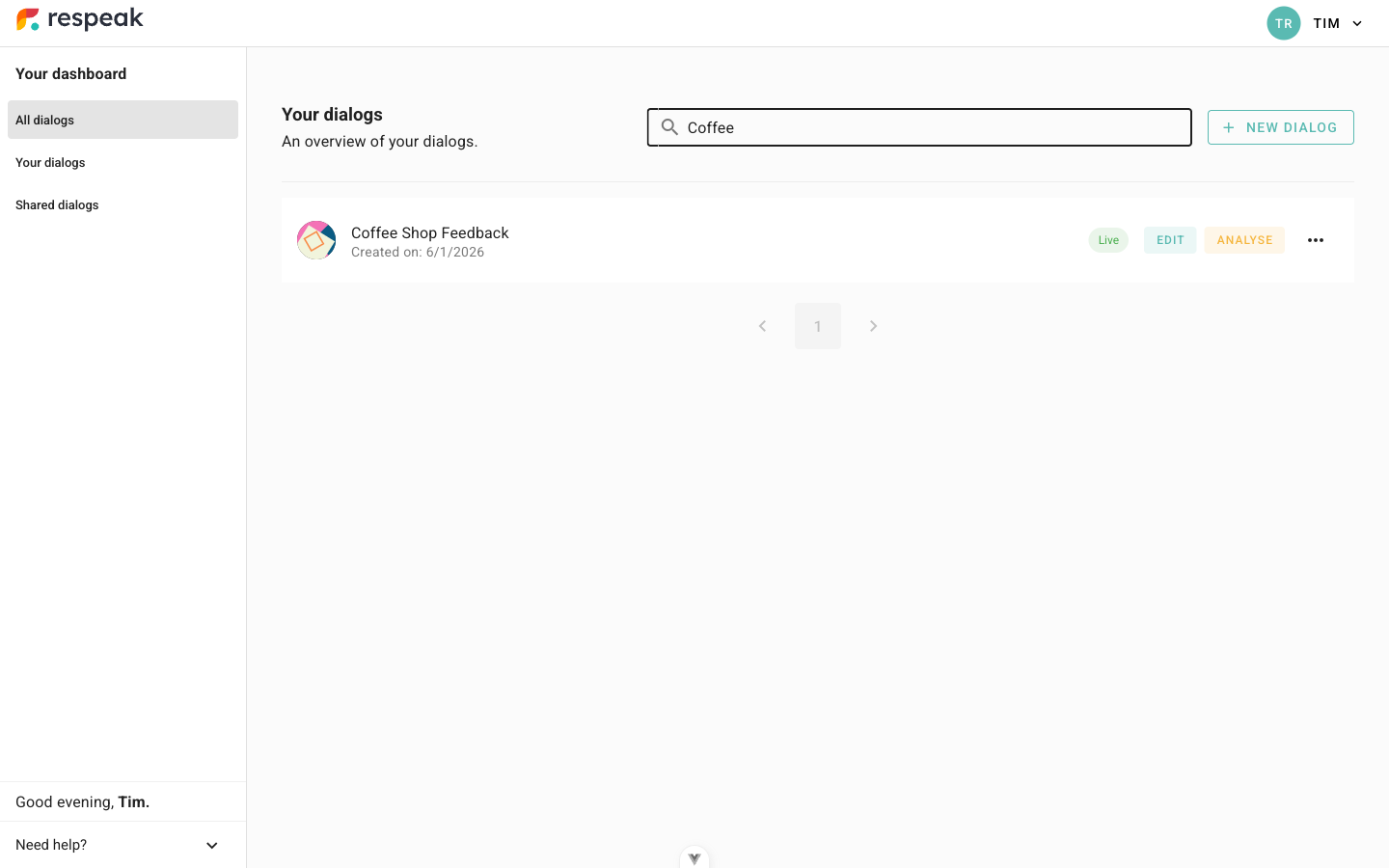
The dashboard lists your dialogs as cards. From here you can:
Search your dialogs by name.
Filter between All dialogs, Your dialogs, and Shared dialogs.
Accept or decline new invitations when someone shares a dialog with you.
Start a new dialog with New dialog.
Each dialog card shows when it was created and how many participants it has, with quick links to Edit and Analyse. The card's menu (the three dots) adds more actions: Train, Test, Share, Duplicate dialog, Reset data, and Delete dialog.
Reset data removes the responses collected so far but keeps the dialog. Delete dialog removes the dialog and all its data. Both are irreversible — Respeak asks you to type the dialog's name to confirm.
The five modules
Every dialog moves through the same lifecycle, and the top navigation bar mirrors it with five modules:
Module | What you do there |
|---|---|
Edit | Build the dialog: its questions, design, media, and flow. |
Train | Teach the bot how to understand and react to free-text answers. |
Test | Try the dialog yourself before publishing it. |
Share | Publish the dialog and share a link, QR code, or website widget. |
Analyse | Explore the responses and insights your dialog has collected. |
You can jump straight to any module from a dialog card, or switch between them in the navigation bar while a dialog is open.
The user menu
The menu under your name gives you Settings (your account), the Help center, the legal pages (Privacy, Imprint, Terms), and Logout.
Need a hand? Find a short overview of the five modules in your profile settings, or reach the team any time at info@respeak.io.