Change Profile & Password
Update your name, email, password, or interface language.
This article explains how to update your personal account settings in Respeak - such as your name, email address, password, or interface language.
Open Settings
Open the user menu
Click your name and email address at the bottom left of the sidebar.
Go to Settings
A small menu opens. Click Settings.
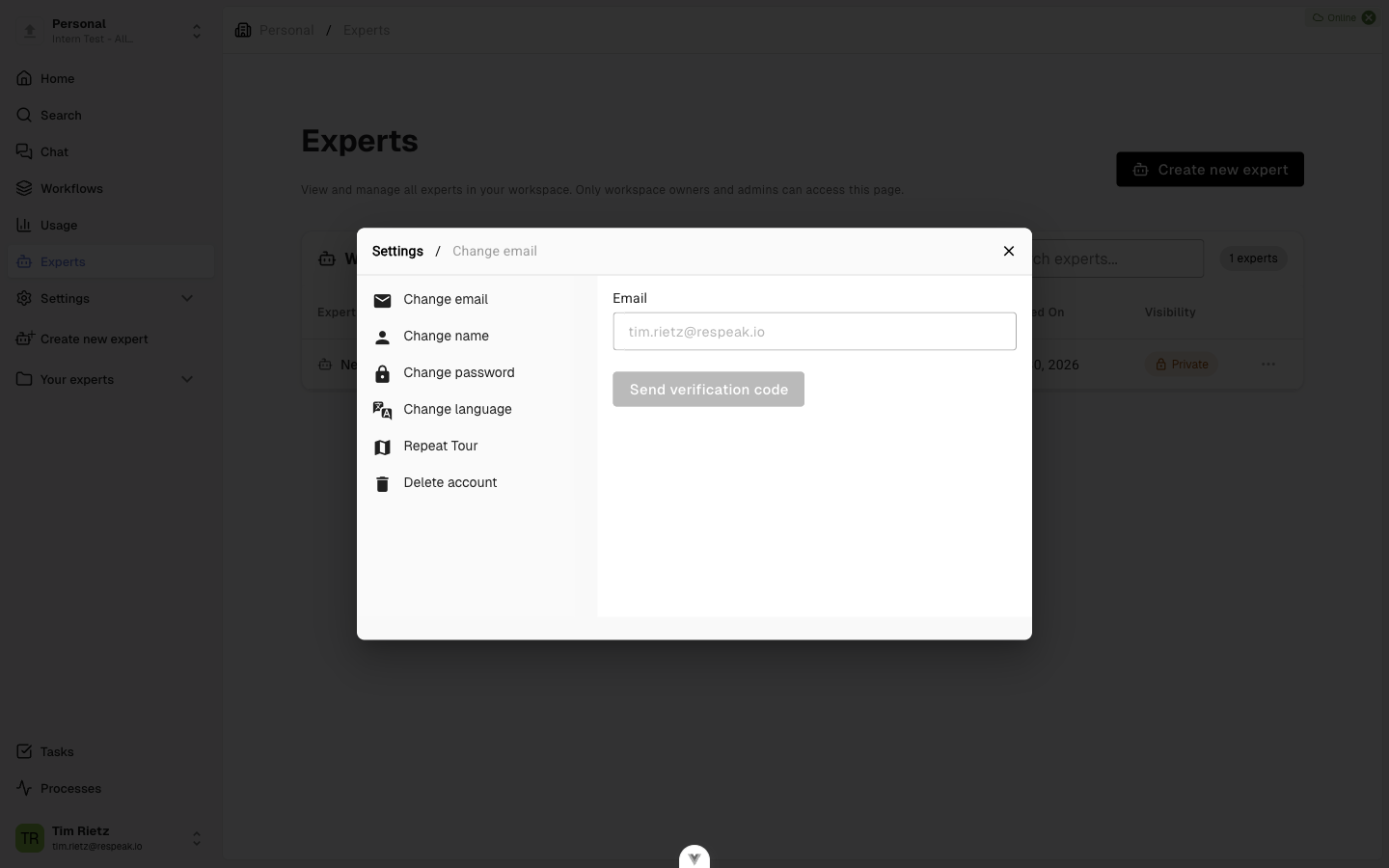
A settings dialog opens with several sections on the left: Change email, Change name, Change password, Change language, Repeat Tour, and Delete account.
Change Your Name
Select the section
In the settings, select Change name.
Enter your new name
Enter your new First name and Last name (max. 20 characters each).
Save
Click Change name. Your new name takes effect immediately throughout the interface.
Change Your Email Address
Your email address also serves as your username for signing in. For security reasons, you must verify the new address with a code.
Select the section
In the settings, select Change email.
Enter the new email
Enter your new email address and click Send verification code. Respeak sends a 6-digit code to the new address.
Confirm the code
Check the inbox of the new email address (and the spam folder, just in case), enter the 6-digit code, and click Confirm code.
If you did not receive the code, click Resend code to request a new one. The code is valid for two hours.
Change Your Password
Select the section
In the settings, select Change password.
Enter your current password
Enter your Current password.
Set your new password
Enter your New password. It must be at least 8 characters long, contain at least one number, and include at least one special character (e.g. !, @, #, %). Re-enter it in the Confirm new password field.
Save
Click Change password.
Use the eye icon next to the password fields to reveal your input and avoid typos.
Change the Language
Select the section
In the settings, select Change language.
Switch language
Open the Language dropdown and choose between Deutsch and English. The change takes effect immediately.
Repeat the Product Tour
If you would like to go through the guided onboarding tour again, you can restart it here.
Select the section
In the settings, select Repeat Tour. You will see whether the tour has already been completed or is still pending.
Start the tour
Click Start Tour to begin the step-by-step walkthrough.
The tour shows you the key features: creating and managing experts, adding knowledge sources, asking and testing questions, viewing analytics, and using team features.
Reset the tour status
Click Reset Tour Status to clear the completion status, so Respeak treats the tour as not yet completed.
Delete Your Account
If you want to permanently remove your Respeak account, you can do so here.
Deleting your account is irreversible. All your data will be permanently removed and cannot be recovered.
Select the section
In the settings, select Delete account and read the warning message carefully.
Confirm your email
Enter your email address to confirm. The input must exactly match the email address on your account.
Delete permanently
Click Delete account and confirm the action in the security dialog. After deletion, you will be signed out automatically.