Having Conversations
Start chats, ask follow-ups, and manage conversations.
This article explains how to start a chat, ask questions, and manage your past conversations.
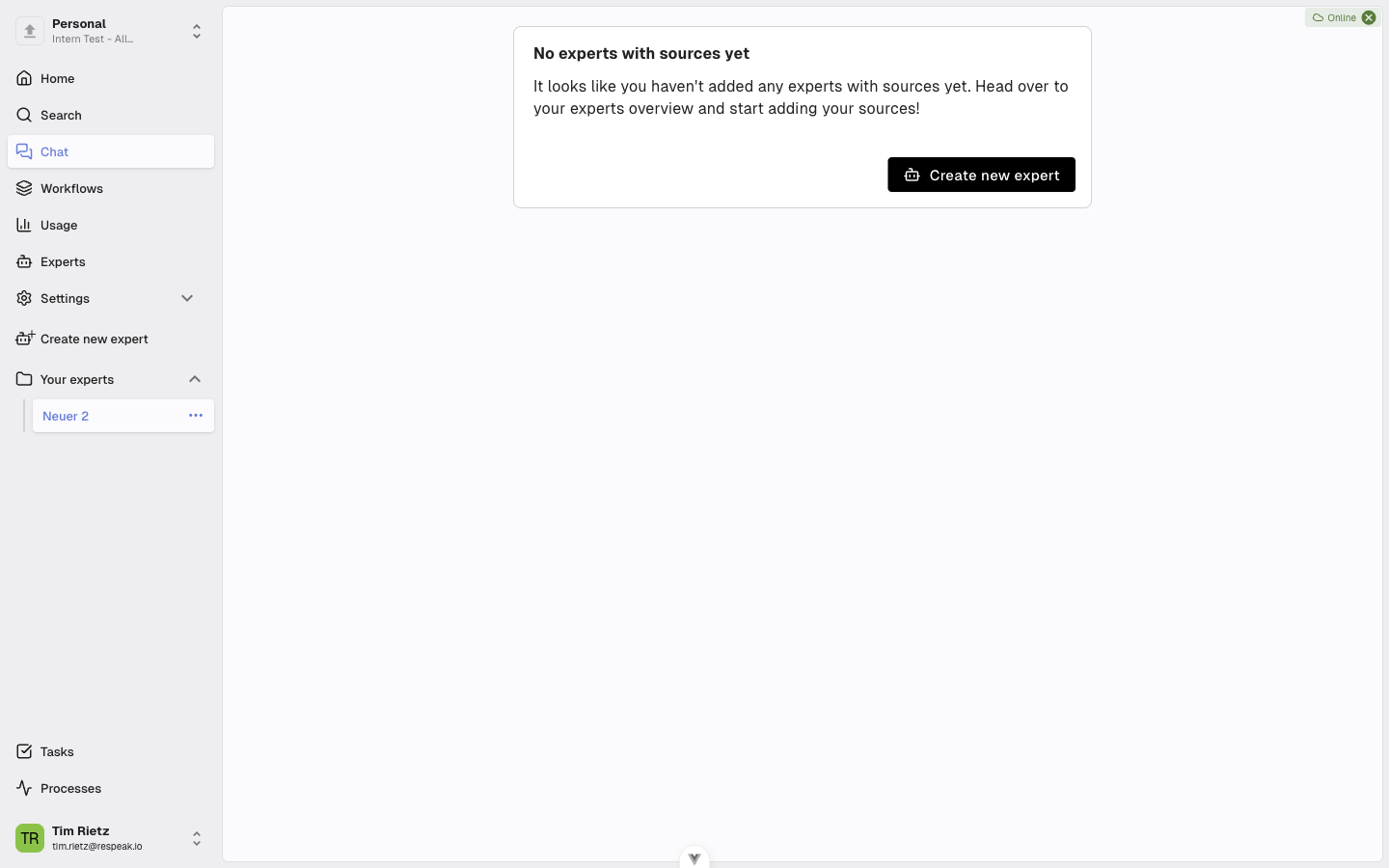
Start a New Chat
Open the Chat
Go to the Chat area and click the plus icon (+) at the bottom of the input area to start a new chat.
Ask your first question
An empty chat opens. Type your question into the input field at the bottom of the screen and press Enter or click the send arrow to submit it.
Your question appears as a message in the conversation. The Chat now begins preparing the answer.
If you want to insert a line break within your message, press Shift + Enter.
Follow the Reasoning Process
While the Chat works on your question, you will see a section labeled Thinking.... Here the Chat shows you transparently what steps it is taking - for example which documents it is searching or which methods it is using. Click the reasoning section to expand it and see each step in detail, or click it again to collapse it.
Once the answer is ready, the section shows how long the Chat spent reasoning (e.g. "Reasoned for 5s").
Audio and Video Sources in Answers
When an answer draws on an audio or video source, the citation shows an inline player so you can listen to or watch the relevant passage directly - including jumping to the exact position in the recording - without leaving the chat.
Ask Follow-Up Questions
The Chat remembers the entire history of your conversation. You can ask follow-up questions at any time that refer to previous answers. Simply type your next question into the input field and send it.
Paste Text from the Clipboard as Context
You can copy text and paste it into the input field. If the pasted text is very long, it is automatically treated as additional context and displayed as a separate block below the input field. This lets you provide the Chat with extensive background information without cluttering the input field.
Access Earlier Conversations
All your conversations are saved.
Open the history
Click the history icon (clock icon) at the bottom of the input area. A list of your past conversations appears - each entry shows the first question of the chat and the date it was created.
Load a conversation
Click a conversation to open it and see the full history.
Delete a Conversation
To remove a conversation, open the list of your past conversations using the history icon. Click the delete icon (trash can) next to the conversation you want to remove and confirm the deletion in the dialog by clicking Delete.
This action cannot be undone. The entire conversation is permanently removed.