AI-Assisted Training
Generate training data automatically and use AI training mode.
Writing every possible answer by hand is slow. The AI training generator does the heavy lifting: you describe the situation, the AI simulates likely answers, and it drafts matching bot reactions you can add to your training data.
Auto-train the bot
Open AI training from the Train module. The generator walks you through four Training steps.
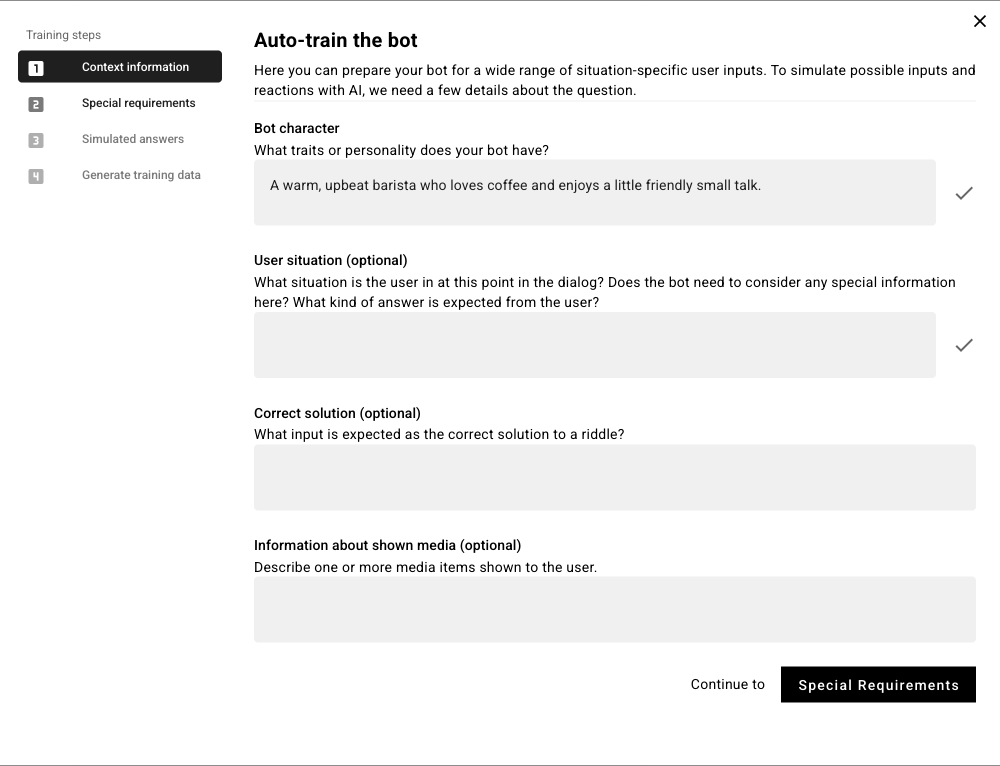
Context information
Describe the question so the AI can imagine realistic answers:
Bot character — what traits or personality your bot has.
User situation — where the participant is in the dialog and what answer you expect (optional).
Correct solution — for a riddle or quiz, the input you expect as correct (optional).
Information about shown media — describe any images, video, or audio the participant has seen (optional).
Special requirements
Give the AI extra guidance on what answers should look like — for example Short answers or keywords only.
Simulated answers
Click Generate answers. The AI lists answers participants might realistically give. If they don't fit, refine the situation in step 1 or use Simulate more answers.
Generate training data
Click Generate reactions. For each simulated answer the AI drafts a matching bot reaction, based on your character, media, and situation. When it's done, click To the training data to add the records.
Treat the results as a first draft. Review the generated records, edit the wording, and remove anything off-key before publishing.
AI training mode (during live dialogs)
In the Train module's Settings, you can let the bot keep learning while real participants chat:
AI training mode — when enabled, the bot automatically generates new training data during a dialog, based on your existing records.
Save generated training data — when this is also on, the new data is added to your existing records; otherwise it is discarded after the conversation.
User feedback — shows a feedback button so participants can rate the bot's responses, and keeps them informed about the status of training mode.
You can also set Max. inactive training data per question block in Settings to cap how many unreviewed records accumulate. Leave it empty for unlimited.
Before you rely on AI-generated records, evaluate how they match.