Manage & Update Sources
View, filter, refresh, and delete sources in the overview.
After you have added knowledge, the knowledge overview lists all of your expert's sources. Here you can view, edit, filter, and - if needed - delete or refresh them.
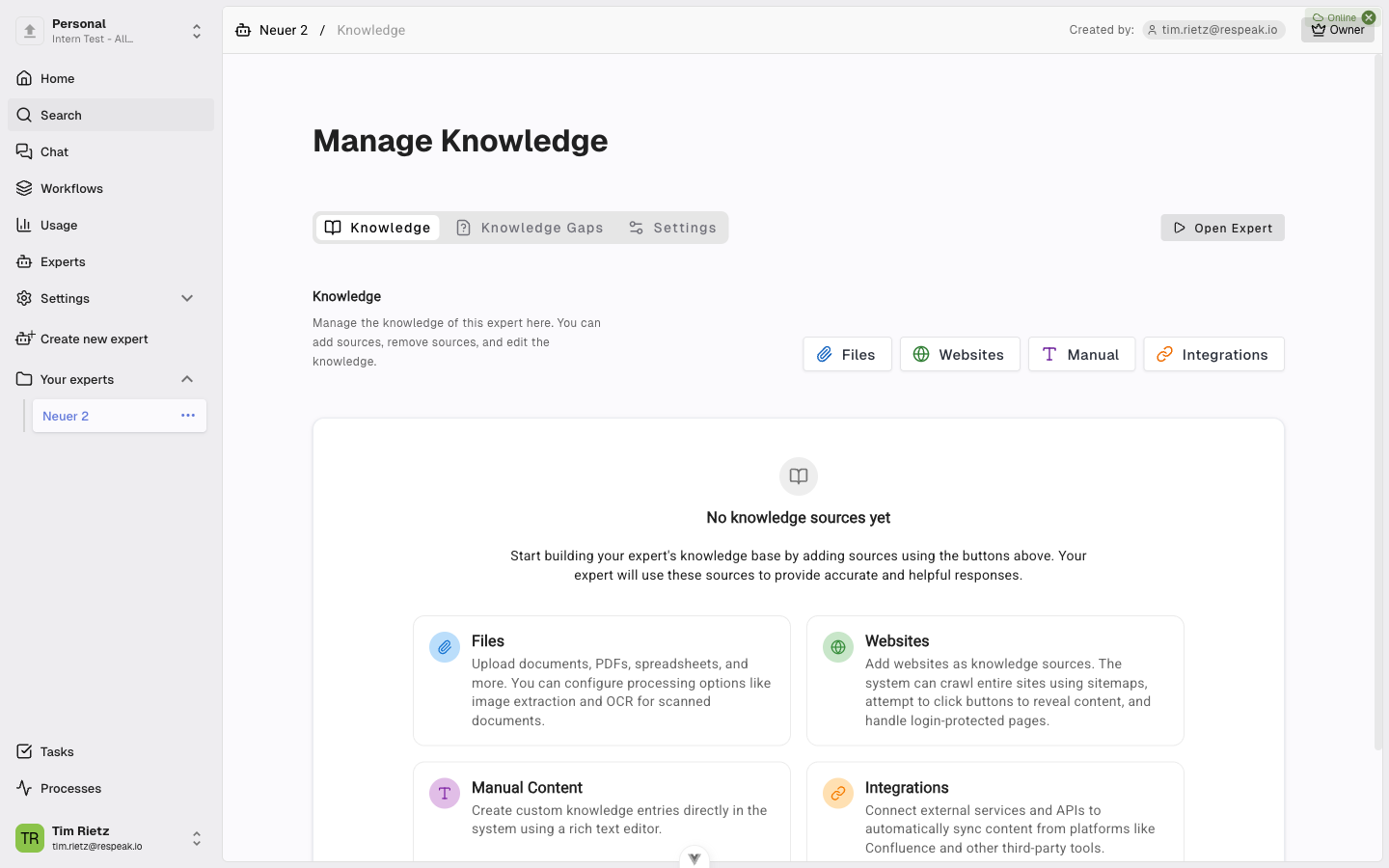
How to Get to the Sources Overview
Open your expert and go to Settings > Knowledge. The overview is displayed automatically. If you are in a sub-section (e.g. adding files), click Back to overview.
Overview of All Sources
Your sources are grouped by type: Files (uploaded documents like PDFs, Word, Excel), Websites (crawled web pages), Manual (manually created entries), Structured Data (imported tabular datasets), and Audio / Video (audio and video files). Each group displays its sources in a table.
Filter and Search
Above the source list you will find powerful filtering options. Use Full-text search to search all sources by keyword. Filter by Labels to find specific categories. With Versions you can show only sources for a specific version, and Date ranges let you narrow the view to a specific time period.
Active filters are shown below the filter bar and can be removed individually or all at once.
View and Edit Individual Sources
Click on a source in the table to view its details. Depending on the source type you can edit the title and metadata (labels, versions, date ranges), view the content of the source, and review the processing results. For audio and video sources, an inline player in the detail view lets you listen to or watch the original file alongside the transcript.
Delete Sources
To delete one or more sources, select the desired entries using the checkboxes in the table. Then click the trash icon at the top of the relevant source group and confirm the deletion in the dialog. You can also select multiple sources at once and delete them together - this is especially useful when you want to remove many outdated sources in one go.
Refresh Websites
Integrations with recurring sync update automatically (see the Integrations article). For individual website sources, you can trigger a re-crawl:
Navigate to the Websites section
Go back to the Websites section in the knowledge area.
Re-add the URL
Add the same URL again. Enable Skip existing content if you only want to pick up new pages - or leave it disabled to refresh all content.
Integrations in the Overview
Below the source tables you will see the connected integrations (e.g. Confluence, SharePoint, GitHub Wiki). From here you can navigate directly to the settings of each integration to adjust syncs or manage the connection.