Publish & Share Your Link
Activate the dialog and share it by link or QR code.
Before anyone can take part in your dialog, you need to publish it. The Share module opens on Share your dialog, where you switch the dialog on and then hand out its link or a QR code.
Publish your dialog
A dialog stays private until you publish it. While it is unpublished, the link simply won't work — visitors can't reach it yet.
Open the Share module
With your dialog open, select Share in the navigation bar.
Activate the dialog
Click Publish (the Activate toggle). The status changes to Dialog active, and your link goes live straight away.
Share it
Your link is now ready under Your link. Copy it or download the QR code as described below.
Give your dialog a final run-through in Test before you publish — once the link is live, real participants can join.
Share via link
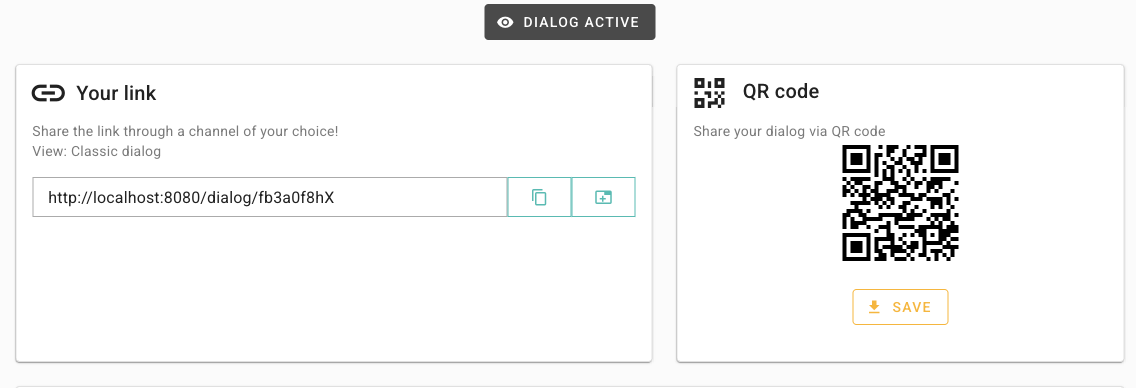
Under Your link you'll find the web address that takes participants to your dialog.
Use the Copy link to clipboard button to grab the link, then paste it into an email, a message, or a post.
The hint Share the link through a channel of your choice! confirms the dialog is live and ready to distribute.
If you ever see Your dialog is not published. Please publish your dialog before sharing the link., the dialog is still inactive — publish it first.
Share via QR code
The QR code card lets you Share your dialog via QR code — handy for print, slides, or posters where a clickable link won't do.
Click Save to download the QR code as an image, then add it to your material. Anyone who scans it lands straight in your dialog.
Deactivate when you're done
To stop collecting new responses, click the active toggle (Deactivate). The dialog returns to Publish status and the link stops accepting new participants.
Deactivating only closes the door to new participants. The responses you've already gathered stay safe — review them any time in Analyse.
What's next
Prefer to place the dialog on your own site? See Embed the Website Widget. Want teammates to help run it? Head to Team & Permissions.