Embed the Website Widget
Add the dialog to your website with the widget code.
Instead of sharing a link, you can place your dialog directly on your own website. The Share module's widget section — ... Or embed the dialog directly in your website — gives you a small code snippet and a few options to style it.
How the widget works
The Respeak widget adds a button to your page. When a visitor clicks it, your dialog opens right there, without leaving your site. You configure how the button looks, then copy a snippet into your website's code.
Configure your widget
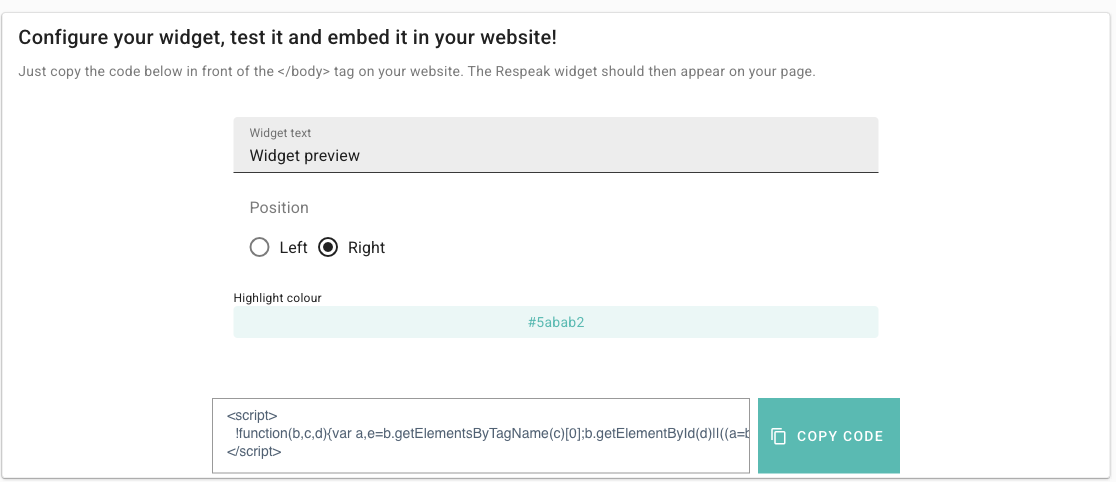
Adjust these options so the widget fits your page:
Option | What it does |
|---|---|
Widget text | The label shown on the widget button. |
Position | Place the widget on the Left or Right of the page. |
Highlight colour | The accent colour used for the widget. |
Click Widget preview to see your settings in action before you publish them to your site.
Embed the code
When you're happy with the look, copy the snippet and add it to your website.
Copy the code
Click Copy code (Copy code to clipboard) to grab the snippet.
Paste it before the closing body tag
On your website, paste the code just in front of the </body> tag, as the section explains: Just copy the code below in front of the </body> tag on your website. The snippet looks roughly like this:
<script src="https://example-placeholder/respeak-widget.js"></script>Check your page
Reload your website. The Respeak widget should now appear in the position you chose.
The widget loads your dialog as it is right now. Make sure the dialog is published (see Publish & Share Your Link) so visitors can actually start it.
Not sure where the </body> tag is? Most website builders have a place to add custom code or a script "before the closing body tag" — paste the snippet there.
What's next
To invite teammates to help run the dialog, see Team & Permissions. Once responses start arriving, explore them in Analyse.