The Analysis Dashboard
The Summary, Questions, and Single view tabs, the key metrics, and the time filter.
The Analysis dashboard is your starting point in the Analyse module. It explores the data behind your dialog and helps you understand how your participants interacted with it.
Data only appears once your dialog is live and people have started taking it. If the dashboard is empty, publish your dialog first — see Publishing & sharing.
The three tabs
The dashboard is organised into three tabs, each answering a different question:
Tab | What it shows |
|---|---|
Summary | The big picture: top-level metrics for the whole dialog. |
Questions | Per-question results, type-specific summaries, and free-text insights. |
Single view | One participant at a time — their full conversation and dialog summary. |
Top-level metrics
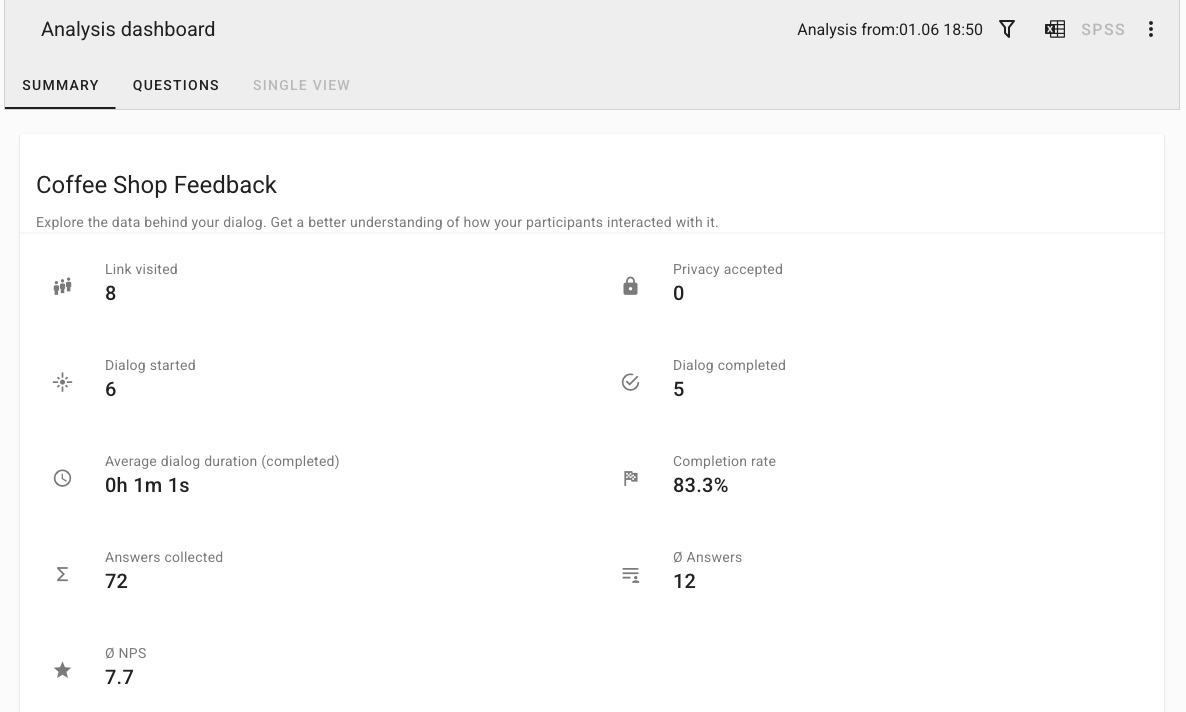
The Summary tab gives you a quick read on how the dialog is performing:
Link visited — how many people opened the dialog link.
Privacy accepted — how many accepted the privacy notice to begin.
Dialog started — how many actually started answering.
Dialog completed — how many reached the end.
Completion rate — the share of participants who finished what they started.
Answers collected — the total number of answers gathered.
Average dialog duration (completed) — how long a finished dialog took on average.
Completion rate is the metric to watch over time. A low rate often points to a dialog that is too long or a question where people drop off — the Questions tab helps you find where.
The time filter
By default the dashboard shows All data. Use the time filter to focus on a period: Last month, Last week, or Last day. For anything else, set a custom range with From and To dates and press Filter. Every metric and chart on the dashboard updates to match the selected period.
Resetting data
The toolbar includes Reset data, which clears the responses collected so far.
Reset data permanently deletes all participant data for this dialog. The dialog itself and its questions stay intact, but the collected answers cannot be recovered. To keep a copy, duplicate the dialog from the dashboard first.