Document Compare
Compare two versions of a document and get a paragraph-by-paragraph report of what changed.
The Document Compare workflow takes two versions of a document — a baseline (the current version) and a target (the revised version) — and produces a clear, paragraph-by-paragraph report of exactly what changed, plus an overall synopsis you can read in seconds. It is built for reviewing revised contracts, regulations, policies, and other long-form documents where every wording change matters.
Preview feature. Document Compare is in active development. Details may still change based on real-world use, and feedback is very welcome — let us know what works, what doesn't, and what's missing.
When to Use It
Pick Document Compare when:
You have two versions of the same document and need to know precisely what changed between them.
The changes matter at the wording level — numbers, dates, names, deadlines, and legal references must not slip through.
You want a readable report you can share, rather than a raw redline.
If you instead need to classify or extract data from a batch of unrelated documents, use the Categorization or Categorization/Extraction workflow.
Setting Up
Open Workflows
Open Workflows from the main menu and pick Document Compare.
Create a configuration
Click New Configuration, give it a descriptive name, and choose the report language (see below). Each configuration gets its own unique email address.
Two Ways to Run a Comparison
In the App
Open your configuration, drop one file into the Baseline field and the other into the Target field, and start the comparison. The report appears on screen as soon as it's ready.
By Email
Every configuration has its own dedicated email address. Send a message to that address with the two documents as attachments and the report comes back to your inbox as a formatted email. When the attachments arrive without clear labels, Document Compare reads your message and the file names to work out which document is the original and which is the revision.
Reading the Report
At the top of the report you get an overall synopsis — a one-line headline and a few bullet points capturing the gist of the revision — followed by a count of how many sections were changed, added, removed, and left unchanged.
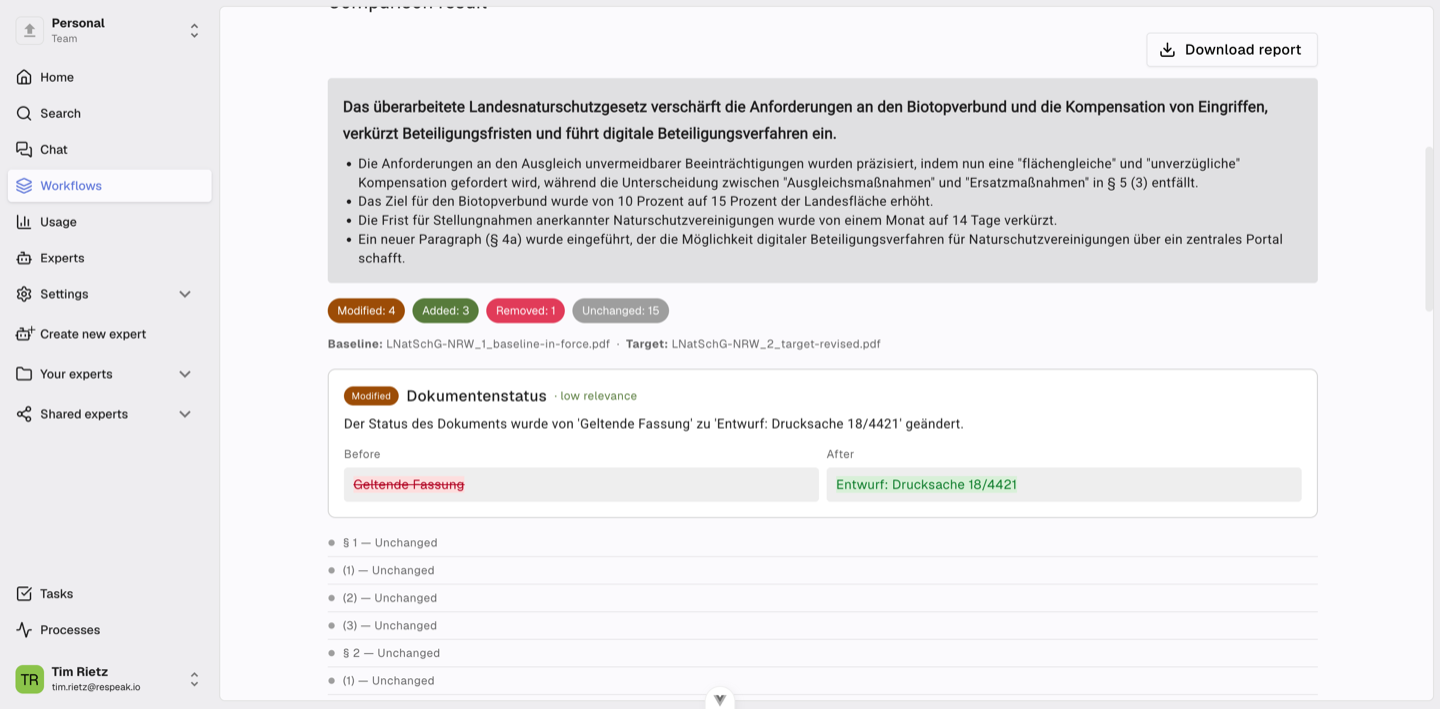
By default the report lists only the differences, which keeps it reliable and readable even for very long documents. Each entry shows the wording before and after, with the exact edits highlighted inline, and carries a relevance flag (low, medium, high) so substantive changes stand out from cosmetic ones. Numbers, dates, names, and legal references are always treated as substantive, so nothing meaningful is glossed over.
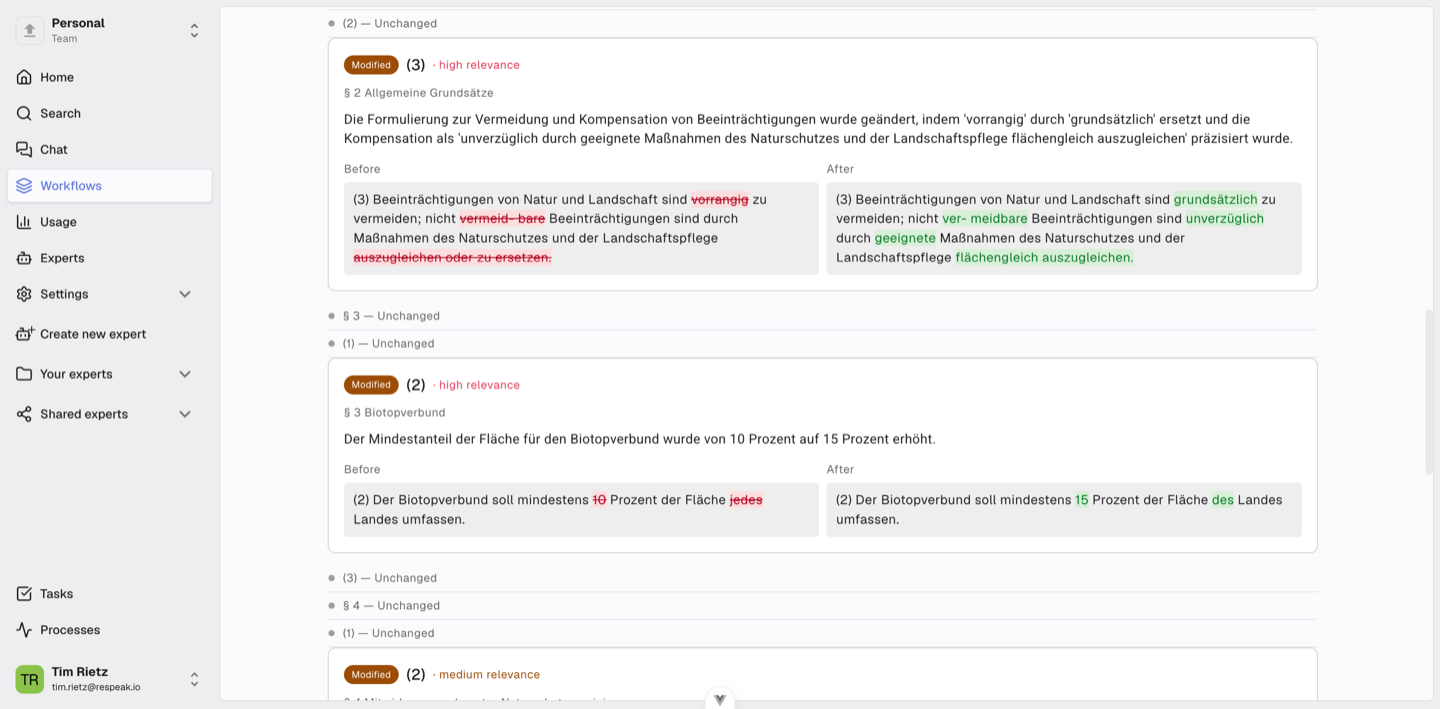
You can download the report at any time to share it or keep it on file.
Set the Report Language
Choose the language the summary and change descriptions are written in — independent of the documents' own language. So you can compare two German contracts and read the report in English, or vice versa, and everyone on your team reads it in the language they prefer. The chosen language is shown in the run overview alongside the status and duration.
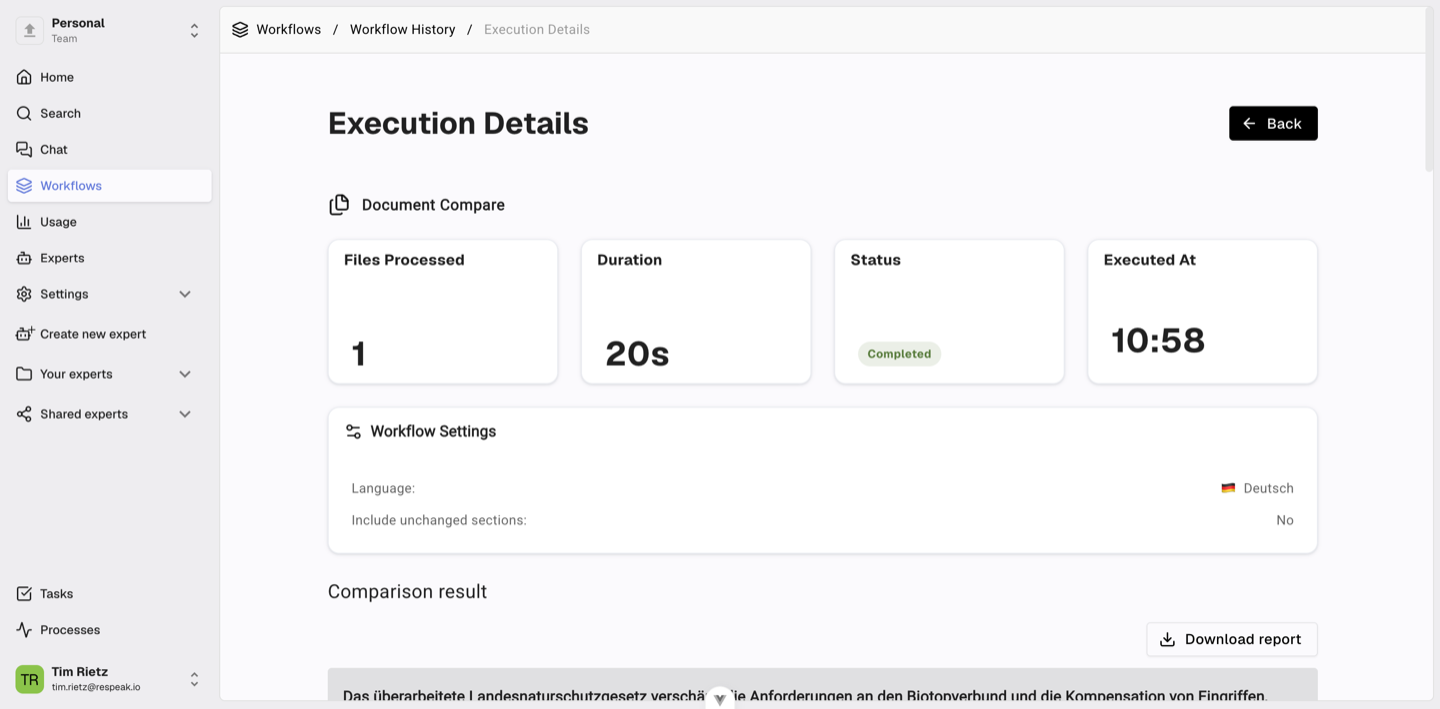
The report language only affects the wording of the synopsis and the change descriptions. The quoted before and after text always stays in the documents' original language, so the exact wording you're reviewing is never paraphrased.