What Are Workflows?
Understand automated categorization and data extraction.
Workflows help you process large volumes of documents automatically. Instead of reading and evaluating each document by hand, Respeak's AI takes care of the work for you.
What Can a Workflow Do?
A workflow offers two features that you can use individually or together:
Categorization
The AI reads your documents and automatically assigns them to the right categories. You define the categories in advance - for example "Invoice", "Contract", or "Application". The AI then decides which category each document belongs to.
Extraction
The AI reads your documents and enters specific information into a table. You define the columns beforehand - for example "Sender", "Date", or "Amount". The AI searches each document for this information and fills in the table automatically.
Both Combined
When you use both features together, your documents are categorized and tabulated in a single step.
A Typical Example
Imagine you receive 200 applications by email. With a workflow, you can have all applications sorted by topic automatically (e.g. "Building permit", "Grant application", "Complaints"), extract key fields like name, date, and subject into a table at the same time, and then download the results as a CSV file for further processing. This saves you hours of manual work.
How Does a Workflow Run?
Every workflow follows three simple steps:
Set up
Select an existing configuration or create a new one. This is where you define which categories and columns to use.
Upload
Upload the documents you want to process.
Process
Start the processing. The AI works through all documents and shows you the progress in real time.
Afterwards, you can review the results directly in Respeak or export them as a CSV file.
Where Do I Find Workflows?
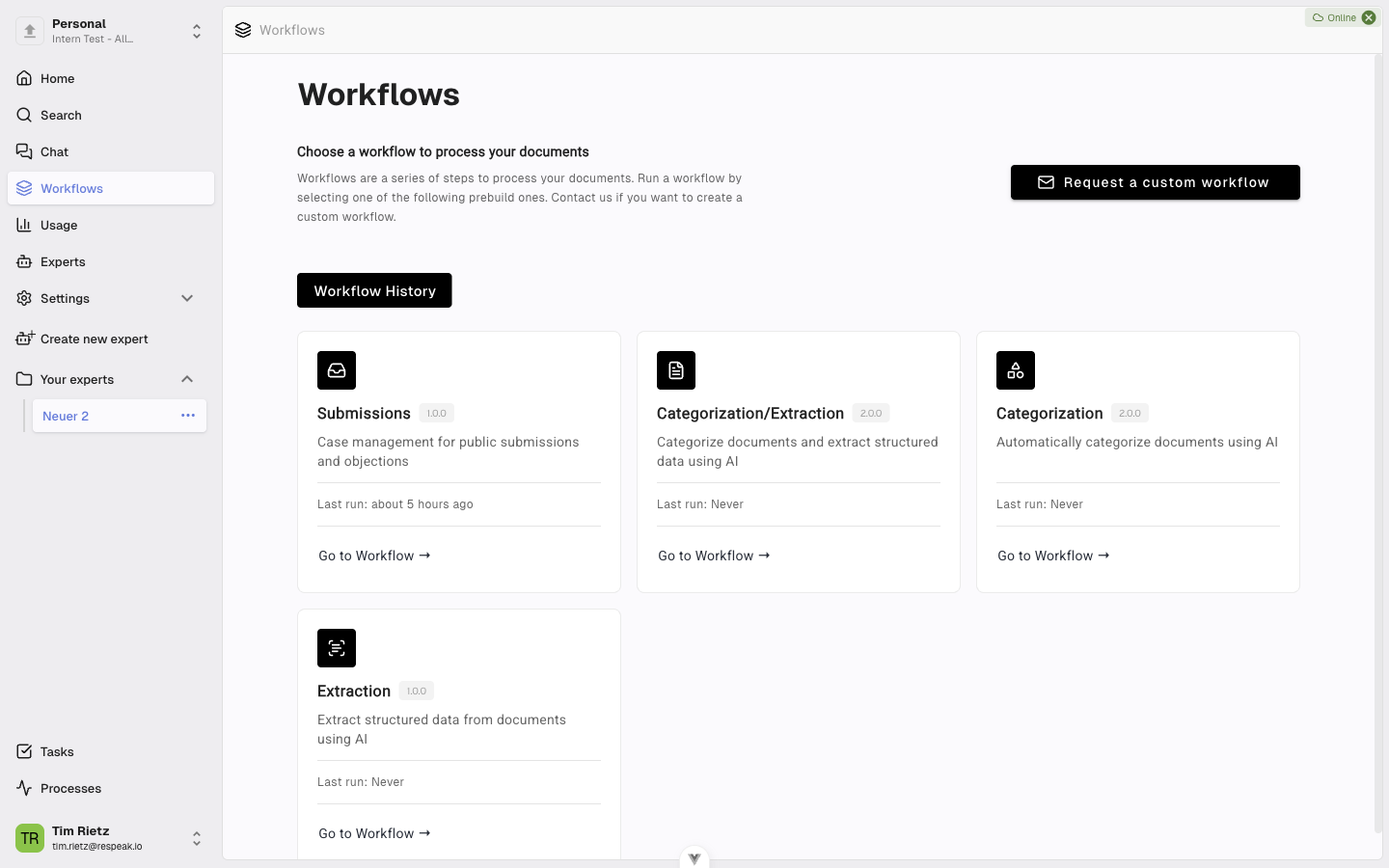
You can find workflows in the main menu under Workflows. There you will see an overview of all available workflow types and can get started right away.
Roles & Permissions
Access to workflows is controlled by a dedicated workflow role. By default, each user's workflow role is derived from their workspace role:
Workspace Role | Workflow Role |
|---|---|
Owner / Admin | Workflow Admin |
Member / Editor | Workflow Member |
Viewer | Workflow Viewer |
Workspace admins can also override this individually via the user's permissions panel (see Invite Users & Assign Roles).
The following table shows what each workflow role can do:
Capability | Viewer | Member | Admin |
|---|---|---|---|
View workflow list and open a workflow | ✓ | ✓ | ✓ |
View setup tab (configurations, categories, columns) | ✓ | ✓ | ✓ |
Upload documents and start processing | — | ✓ | ✓ |
View workflow results | — | ✓ | ✓ |
Create, edit, or delete configurations | — | — | ✓ |
Create, edit, or delete categories and extraction columns | — | — | ✓ |
When a user lacks permission for an action, the corresponding button appears disabled and a tooltip explains what is missing.