The Flow Editor
Visually connect blocks, see jumps, group them, and simulate.
The Flow tab gives you a visual map of your dialog. Every block appears as a node, and the lines between them show how the conversation moves — where it begins, where it branches, and where it ends. It is the best way to see the shape of your dialog at a glance and spot gaps before participants do.
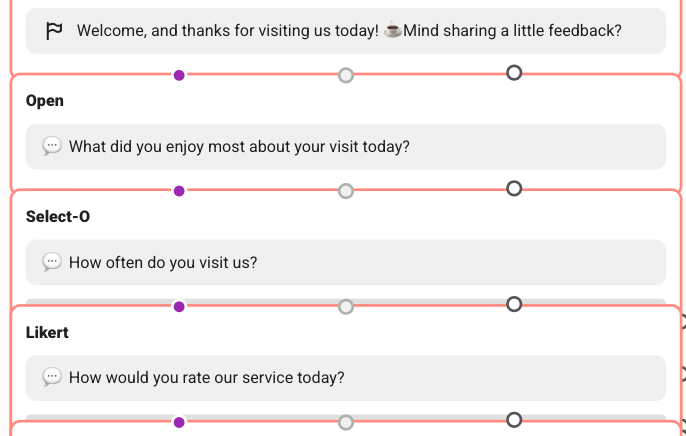
Reading the graph
Each node is one of your blocks. The connecting lines (edges) show how participants travel from one block to the next, including the jumps you have set up:
Edge | Meaning |
|---|---|
On correct answer | The path taken when a quiz question is solved correctly. |
Jump on '…' | A conditional jump, e.g. from a ChatGPT block's exit condition. |
Jump on option | A per-answer branch from a choice question. |
The dialog has a clear sense of where it begins and ends — the points participants enter and the points that count as completed.
Working in the editor
Select a node to open its toolbar, where you can:
Create new block — add a block directly in the flow.
Copy block — duplicate an existing block.
Delete block — remove a block (you will be warned if jump targets would be lost).
Simulate from here — preview the conversation starting at the selected block.
Finding and organising blocks
Search — use the search box to find a block by its question, answer, ID text; matches are highlighted in the graph.
Groups — tidy related blocks together. Create a group, rename it, change its colour, and add or remove blocks. Deleting a group can either keep its blocks or remove them too.
Reset layout — if the graph gets messy, reset the layout to a clean automatic arrangement. This overwrites your manual positioning, so you will be asked to confirm.
Use the legend's Show edges filters to focus on one kind of connection at a time — for example, only Conditional jumps — when you are untangling a complex branch.
The Flow editor also offers recordings and coverage tools for multichats. Those belong to multichat work and are covered separately.